Guide Get started
The deck at a glance
What the keys, dials and touch strip do, and every dial gesture Reason Remote understands.
The Stream Deck + has three kinds of control, and Reason Remote gives each one a steady job. Keys move you around or switch things on and off. Dials change values. The touch strip shows what each dial is doing and lets you pick which parameter it controls.

- Dial 1Master Level
- Dial 2Select Patch
- Dial 3Pitch
- Dial 4Mod
Keys#
The eight keys sit in two rows of four. This guide numbers them left to right, top row first.
- Navigation keys open another page. Back is always top-left, and section keys like Osc 1 and Filter open the matching section. The page you're on pulses, so you can always see where you are.
- Folder keys show a small grid icon and a list of names, like Mod/LFO. They open a set of related sections.
- Switch keys turn a setting on or off, like an oscillator's On or Phase Sync. They light up when the setting is on, even when you change it in Reason.
- Page keys such as Document, Mix, Piano, Go, Prev and Next move between the main areas. Getting around covers them.
Dials and the touch strip#
Each dial owns the quarter of the touch strip above it. A dial holds one to four parameters. They sit side by side in its quarter of the strip, and the selected one is highlighted. Turning the dial changes the selected parameter.
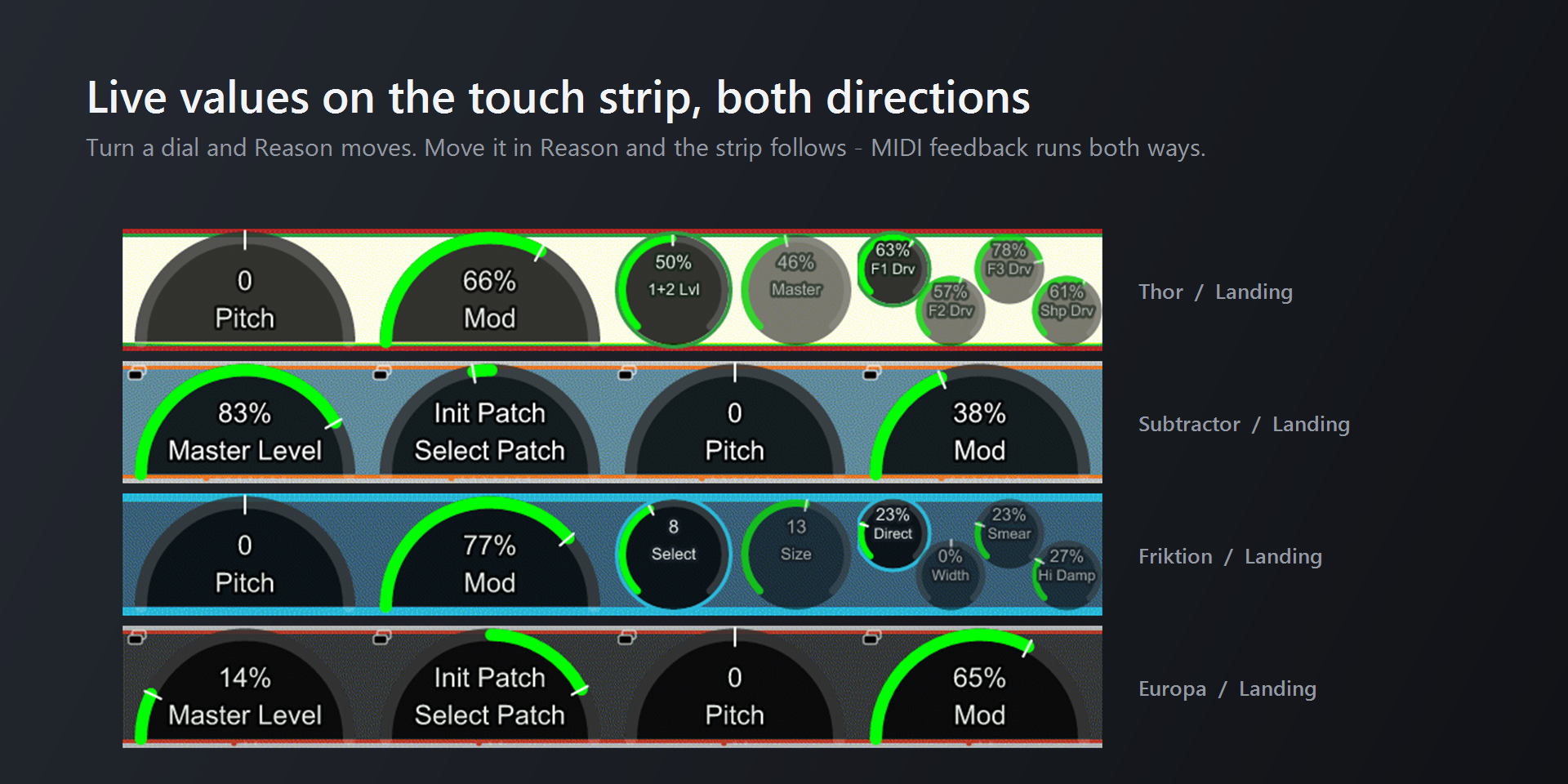
Values run both ways. Turn a dial and Reason moves. Move the control in Reason with the mouse and the strip follows.
Some parameters on the strip are buttons, for example Play, Loop or Tap tempo. Tap them on the strip. Turning the dial doesn't fire a button.
Dial gestures#
| Gesture | What it does |
|---|---|
| Turn | Changes the selected parameter. Turn faster for bigger steps. |
| Tap a parameter on the strip | Selects it. If it's a button, tapping fires it. |
| Press the dial | Selects the next parameter on that dial. If the dial holds a single button, the press fires the button. On a few dials, such as Fury's Pitch, a press recentres the value. |
| Press and turn | Moves the selection through the dial's parameters, one per click. |
| Turn a switch | A switch (On, Loop, Click…) turns on clockwise and off anticlockwise, which helps when a tap misses. |
| Touch and hold the strip | Leaves the page. See below. |
The hold gesture#
Touch and hold anywhere on the touch strip to move between your instrument and the Document page (or the Piano, if that's where you went last). The hold works the same everywhere, including over a button or a piano key. Nothing under your finger fires.
It's the most useful gesture on the deck. Getting around explains where it takes you.