Guide Make it yours
Customising your deck
Change the bundled pages safely, add Reason Remote actions to empty keys and your own profiles, and what to leave alone so auto-follow keeps working.
The profiles Reason Remote installs are ordinary, editable Stream Deck profiles. You can restyle keys, fill empty keys with your own actions, and change how the dials look. There are a few rules to follow so auto-follow keeps landing on the right page.
Finding the profiles#
In the Stream Deck app, select your Stream Deck +, then open the profile list. Reason Remote's profiles are named like this:
| Profile | What it holds |
|---|---|
Reason - Core (Auto-Follow) and the RSN-… (Auto Follow) profiles | Instrument pages and hubs (full version) |
Reason Lite (Auto-Follow) | Instrument pages and the hub (Lite) |
Reason - Document (Global) | The Document page, its sections and the Piano |
Reason - Master (Global) | The Master mixer |
Lite's Document and Master profiles are named Reason Lite - Document (Global) and Reason Lite - Master (Global).
Each profile has many pages. Use the page dots under the key grid to move between them.
The rules#
- Edit the installed profiles, not copies. Auto-follow always switches to the bundled profiles, so it never opens a duplicate.
- Keep your edits somewhere safe. A reinstall, or a plugin update that replaces its bundled profiles, can overwrite them. Before you make big changes, export the profile from the Stream Deck app's profile settings.
- Leave the dial parameters' MIDI settings alone. Each dial sends the exact controller that Reason Remote's codec expects for that page. Relabelling and restyling is safe, but changing a CC or channel breaks the link to Reason.
Things worth doing#
- Fill empty keys. Several pages have free keys. Examples are bottom-left on the Document landing page, most of the Master page, and the spare keys on hubs. Good candidates are Prev/Next (Track Previous/Next) on the Master page, or Reason Remote Status anywhere.
- Restyle keys. Change a key's title or icon with the Stream Deck app's usual editor. Navigation still works, because it depends on the action, not the picture.
- Restyle dials. Every dial is a Reason Encoder or Reason Channel Strip action with its own settings panel. You can change colours, shape, text size and more. See Dial settings.
- Use the actions elsewhere. Put Mix, Piano or the track keys into your own Stream Deck + profiles.
The actions#
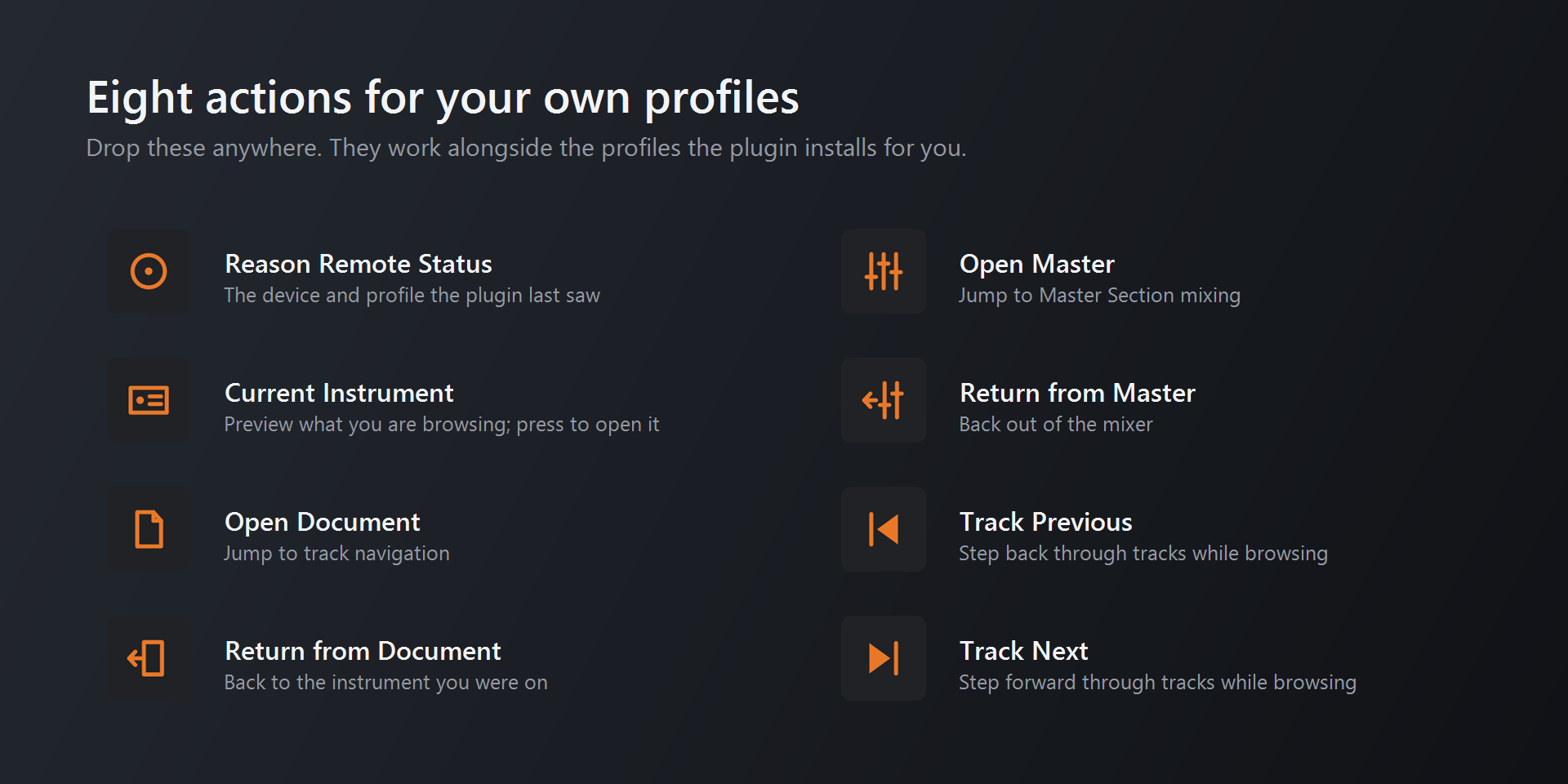
Drag these from the Reason Remote category in the Stream Deck app's action list.
| Action | What it does | Settings |
|---|---|---|
| Reason Remote Status | Shows the last device the plugin heard about and where it switched. Useful for troubleshooting. | Info only |
| Open Document | Goes to the Document page. Also sets the strip hold to instrument ⇄ Document. | None |
| Return from Document | Goes back to the instrument you selected most recently | None |
| Open Master | Goes to the Master mixer | None |
| Return from Master | Goes back to the Document page | None |
| Current Instrument | Shows the selected device's picture; press to go to its pages | None |
| Track Previous / Track Next | Selects the previous or next track in Reason | None |
| Open Piano | Goes to the Piano. Also sets the strip hold to instrument ⇄ Piano. | None |
| Reason Encoder | A dial with one to four parameters | Full panel, see Dial settings |
| Reason Channel Strip | A dial with mixer faders and meters | Channels, meter colours |
| MIDI Toggle | The on/off switch keys on instrument pages | None in the app. Copy an existing switch key instead. |
| Reason Note, Reason Octave, Reason Note Mode | The Piano's keys | None in the app. They're set up on the Piano page. |